
Part of my SC-500 study series: hands-on labs in a test tenant, one concept at a time.
Goal: Touch all three Azure governance mechanisms in one sitting: a custom RBAC role, an Azure Policy assignment, and a resource lock. Each one answers a different question:
| Mechanism | Question it answers | Enforced when |
|---|---|---|
| RBAC role | Who can do what? | At the API call (authorization) |
| Azure Policy | What is allowed to exist / how must it be configured? | At creation/update (and audited after) |
| Resource lock | Can this thing be deleted or changed at all? | Always, regardless of RBAC role |
Prerequisites#
- An Azure subscription you can experiment in
- Owner or User Access Administrator rights (custom roles need role-write permission)
- A test resource group. This lab uses
SC-500_Test_Group(create it fresh; we delete it at the end)
Part 1 - Create a custom role by cloning Reader#
Azure has hundreds of built-in roles, but sometimes none fits. A classic example: Reader is too generous because it can list storage account keys, which grants data-plane access. Instead of building a role from scratch, clone the closest built-in role and subtract.
1.1 Clone the Reader role#
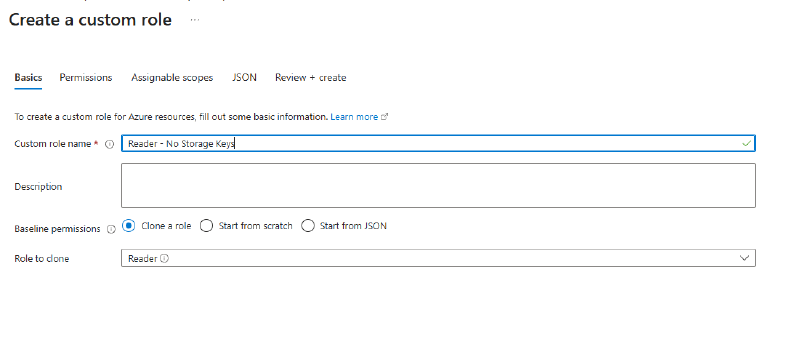
Go to Subscription > Access control (IAM) > Roles, find Reader, and choose to clone it. On the Basics tab:
- Custom role name:
Reader - No Storage Keys - Baseline permissions: Clone a role, with Reader as the role to clone
1.2 Exclude the listKeys permission#
On the Permissions tab, choose Exclude permissions, browse to Microsoft.Storage, and search for Microsoft.Storage/storageAccounts/listKeys/action. Check Other : List Storage Account Keys as a Not Action.
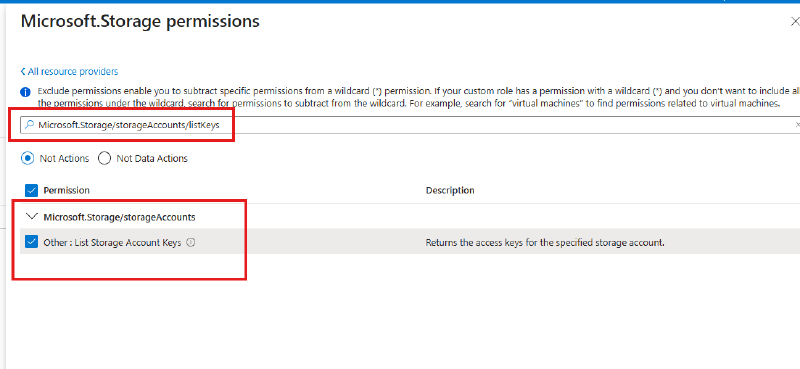
NotActions subtract, they don’t deny. Reader’s permission set is
*/read(a wildcard).NotActionscarves exceptions out of that wildcard. It is not a deny rule: if the user getslistKeysfrom some other role assignment, this role does nothing to stop it. Explicit denies exist separately as deny assignments, which are created by Azure, not by you.
1.3 Set the assignable scope#
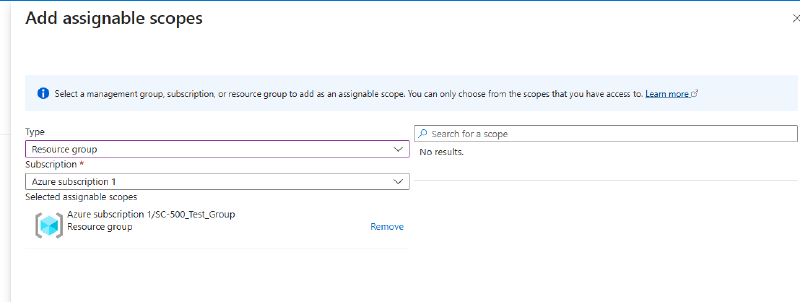
On Assignable scopes, add the test resource group (Azure subscription 1/SC-500_Test_Group). Assignable scopes control where this role can be assigned. It’s good hygiene for keeping experimental roles from spreading across the tenant.
1.4 Review the JSON#
The JSON tab shows what we actually built. Worth reading closely, because role JSON shows up on the exam:
{
    "properties": {
        "roleName": "Reader - No Storage Keys",
        "description": "Test Custom Role",
        "assignableScopes": [
            "/subscriptions/<sub-id>/resourceGroups/SC-500_Test_Group"
        ],
        "permissions": [
            {
                "actions": [
                    "*/read"
                ],
                "notActions": [
                    "Microsoft.Storage/storageAccounts/listkeys/action"
                ],
                "dataActions": [],
                "notDataActions": []
            }
        ]
    }
}
Effective permissions = actions minus notActions: read everything, except listing storage keys. Note the separate dataActions/notDataActions arrays. Control-plane and data-plane permissions are distinct lists.
Part 2 - Assign a built-in Azure Policy#
Where RBAC governs people, Policy governs resources. We’ll require a tag on everything created in the test resource group.
2.1 Find the definition#
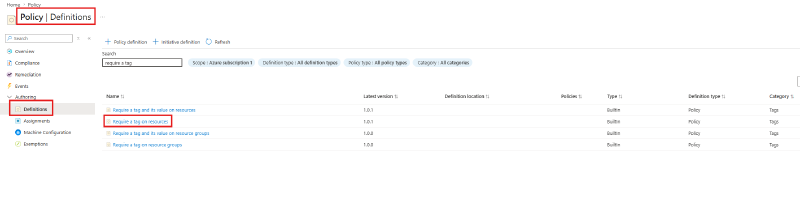
Go to Policy > Authoring > Definitions and search for require a tag. Select the built-in Require a tag on resources definition.
2.2 Assign it#
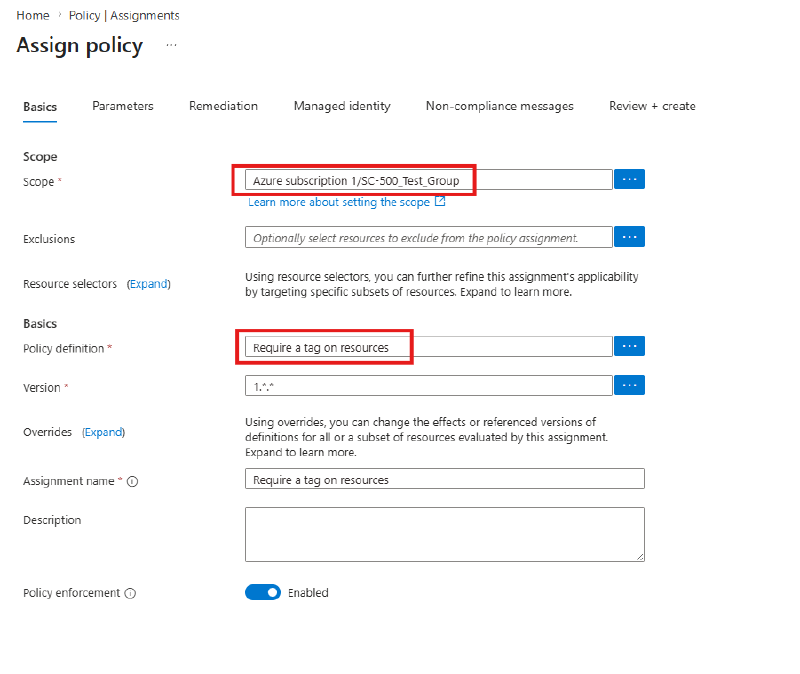
Click Assign. On the Basics tab:
- Scope:
Azure subscription 1/SC-500_Test_Group, so the policy applies only inside the test group - Policy definition: Require a tag on resources
- Policy enforcement: Enabled
2.3 Set the parameter#
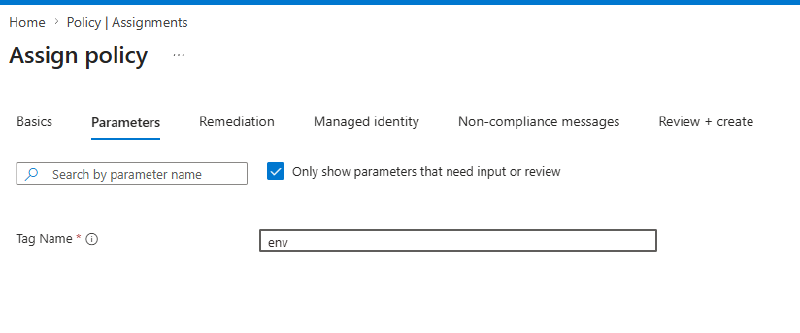
On the Parameters tab, set Tag Name to env. Then Review + create, then Create.
This definition uses the deny effect: any resource created (or updated) in scope without an env tag gets rejected at validation time. Other common effects to know: audit (allow but flag), append/modify (fix it for you), and deployIfNotExists (deploy companion resources).
2.4 Test the policy and watch it deny#
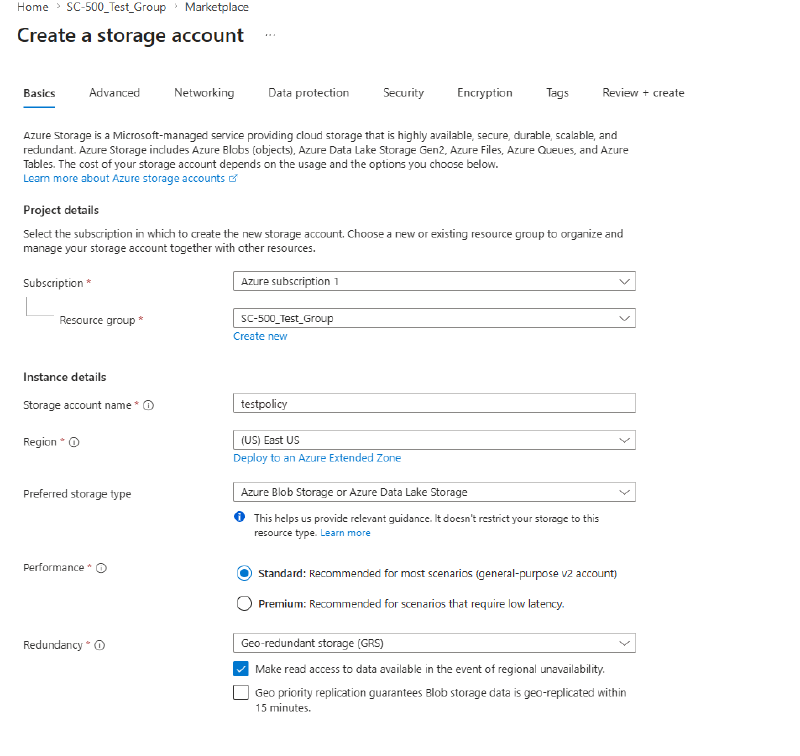
Try to create a Storage account in SC-500_Test_Group (any name; here testpolicy, East US), filling in only the Basics tab.
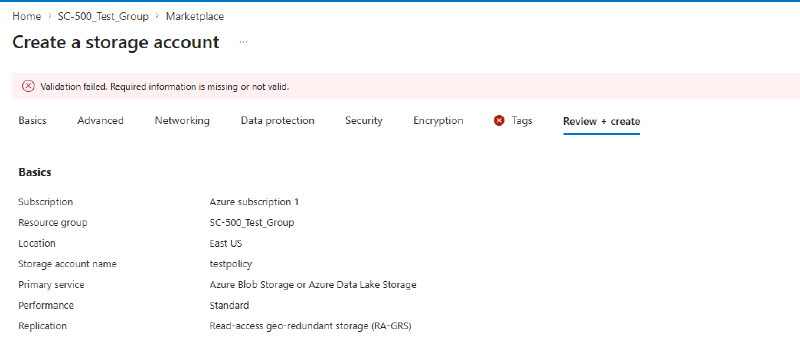
On Review + create, validation fails with a red banner and a red X on the Tags tab. The policy denied the deployment before anything was created.
2.5 Satisfy the policy#
Go back to the Tags tab and add a tag named env. The policy only requires that the tag exist, so any value works. That’s the difference from the sibling definition “Require a tag and its value on resources”.
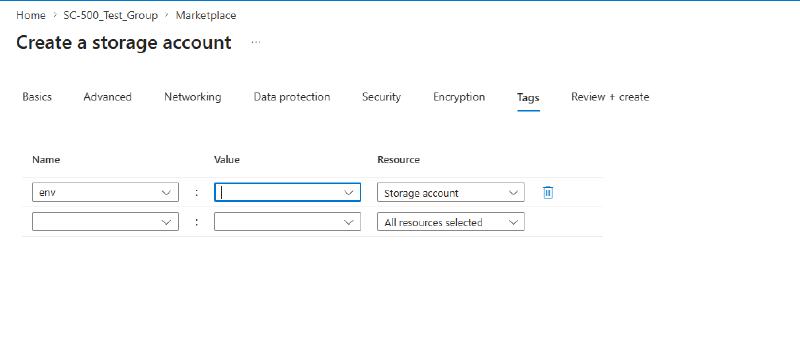
Validation now passes and the storage account deploys.
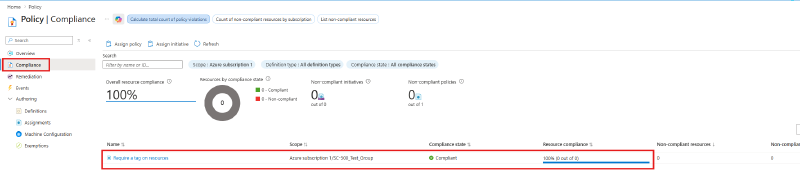
2.6 Check compliance#
Policy > Compliance shows the assignment evaluating as Compliant. Every resource in scope satisfies the rule.
Part 3 - Apply and test a resource lock#
Locks are the last line of defense against accidental deletions, and they bind everyone, including Global Administrators and Owners.
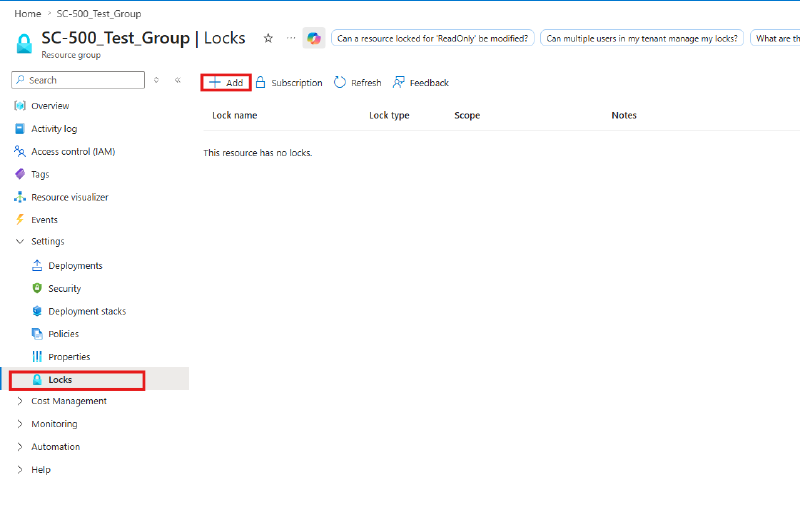
3.1 Add the lock#
In the resource group, go to Settings > Locks and click + Add.
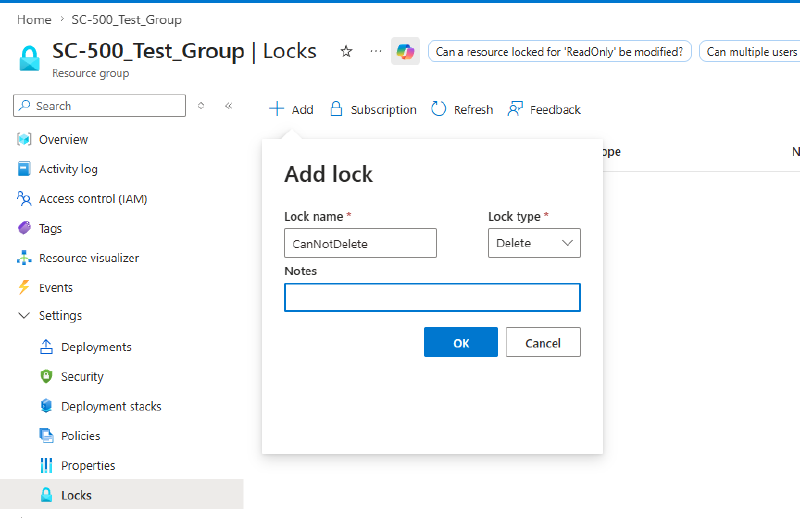
- Lock name:
CanNotDelete - Lock type: Delete. Reads and updates are still allowed; deletion is blocked. The other type, Read-only, blocks all changes and behaves like restricting everyone to the Reader role. It can break things in surprising ways; for example, listing storage keys is a POST and gets blocked.
Locks inherit downward: a lock on the resource group protects every resource inside it.
3.2 Try to delete the resource group#
From the resource group Overview, attempt Delete resource group. Even as Global Administrator, it fails:
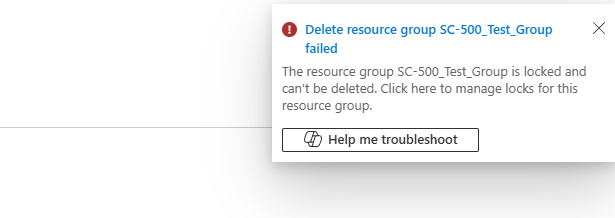
This is the key point: locks are not an RBAC concept. RBAC says you may delete; the lock says the delete operation itself is refused until the lock is removed. Removing a lock is its own permission (Microsoft.Authorization/locks/*, held by Owner and User Access Administrator), so a lock also acts as a deliberate two-step confirmation.
3.3 Remove the lock and clean up#
Delete the lock from the Locks blade, then delete the resource group. This time it succeeds:
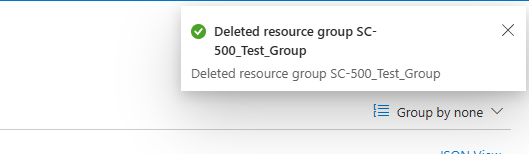
Deleting the resource group also cleans up the storage account and the policy assignment. Optionally delete the custom role too (IAM > Roles; it must have no active assignments).
Key takeaways#
- Custom roles are usually clone-and-subtract.
NotActionssubtracts from a wildcard; it is not an explicit deny. Effective permissions = Actions minus NotActions. - Assignable scopes limit where a custom role can even be assigned. Use them to contain experiments.
- Azure Policy governs resources, not people. The deny effect rejects non-compliant deployments at validation time, and the Compliance blade gives you the ongoing audit view.
- Parameters make policy definitions reusable: one built-in definition, any tag name.
- Resource locks override RBAC. A Delete lock stops even a Global Administrator, and locks inherit from parent scopes. Know Delete vs Read-only for the exam.
- Together they layer: RBAC decides who can act, Policy decides what may exist, locks decide what must survive.