
Part of my SC-500 study series: hands-on labs in a test tenant, one concept at a time.
Goal: Run the complete Privileged Identity Management (PIM) just-in-time access loop end to end. Make a user eligible for the Security Reader role, harden the role’s activation settings (1-hour max, justification, approval), then activate the role as the user, approve the request as the approver, and verify the whole trail in the audit logs.
Why this matters#
Standing privileged access is one of the biggest identity attack surfaces. A compromised account with a permanent admin role gives the attacker that role permanently too. PIM replaces standing access with just-in-time elevation:
- Eligible assignment: the user can have the role, but doesn’t hold it right now. Activation is a deliberate, logged, time-boxed act.
- Active assignment: the user holds the role continuously (what PIM tries to minimize).
The activation gates you’ll configure here (MFA/justification/ticket/approval, maximum duration) come up regularly on the SC-500. PIM requires Entra ID P2 licensing.
Prerequisites#
- Entra ID P2 (or a trial with it)
- A test user (this lab:
Test User) and a second account to act as approver - Privileged Role Administrator or Global Administrator rights for the setup steps
Part 1 - Assign an eligible role#
1.1 Open PIM and add an assignment#
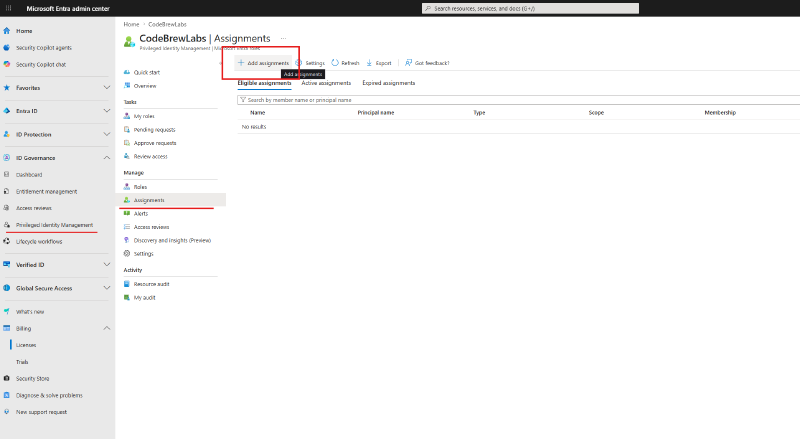
Go to Entra admin center > ID Governance > Privileged Identity Management > Microsoft Entra roles > Assignments and click + Add assignments. Notice the three tabs: Eligible, Active, and Expired assignments. That’s the PIM lifecycle in one view.
1.2 Choose the role and member#
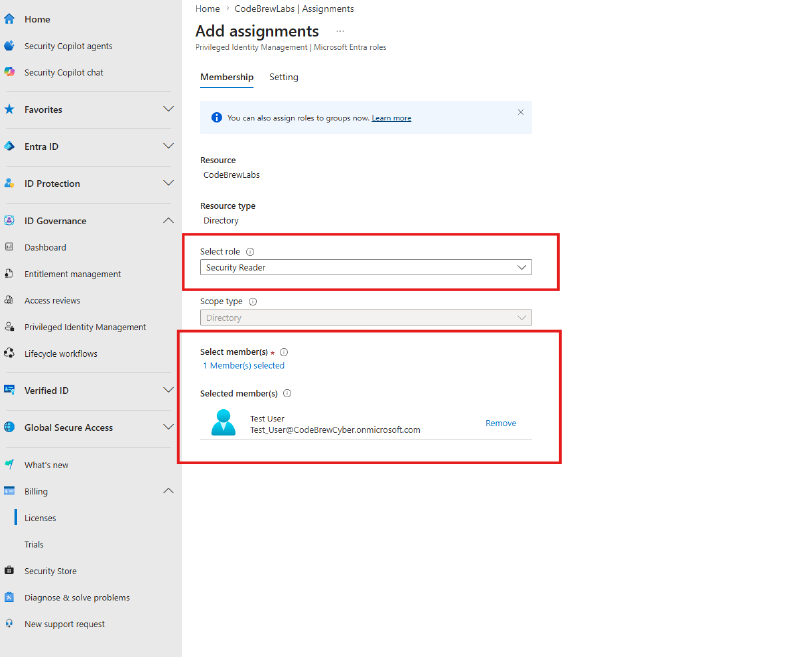
On the Membership tab:
- Select role:
Security Reader, a deliberately low-risk role for lab purposes - Scope type: Directory
- Select member(s): the Test User
1.3 Make it Eligible, not Active#
On the Setting tab, choose Assignment type: Eligible and set an assignment window (here, one day). This window bounds eligibility itself and is separate from the activation duration we’ll configure next. Click Assign.
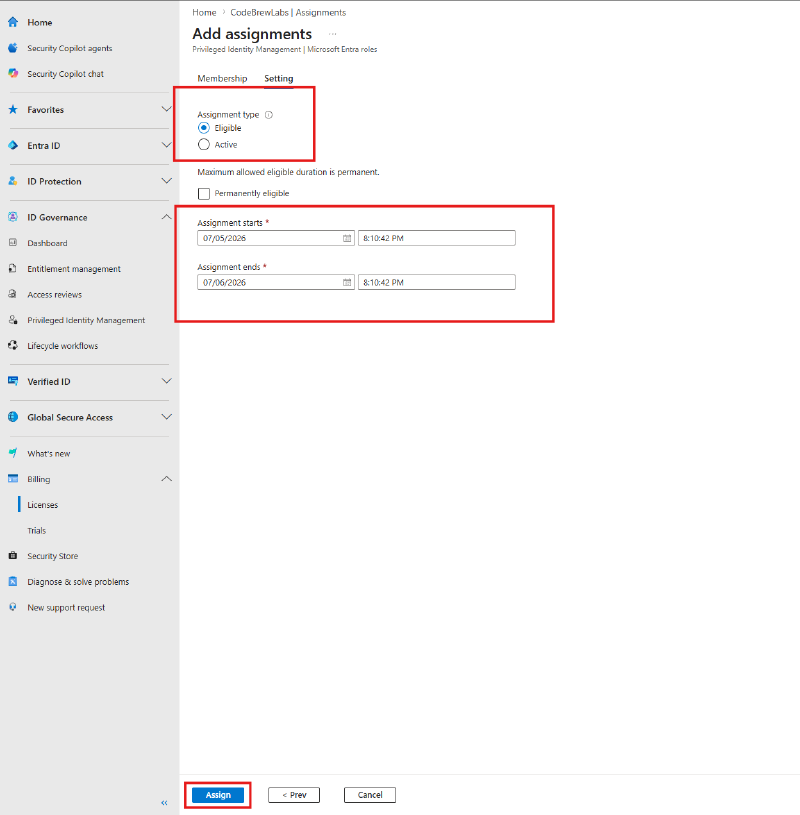
Two different clocks. Assignment start/end controls how long the user stays eligible. Activation maximum duration controls how long each individual activation lasts. Confusing these is a classic exam trap.
Part 2 - Harden the role’s activation settings#
Role settings are per-role policies that govern what activation requires. Go to PIM > Microsoft Entra roles > Settings and filter for security to find Security Reader.
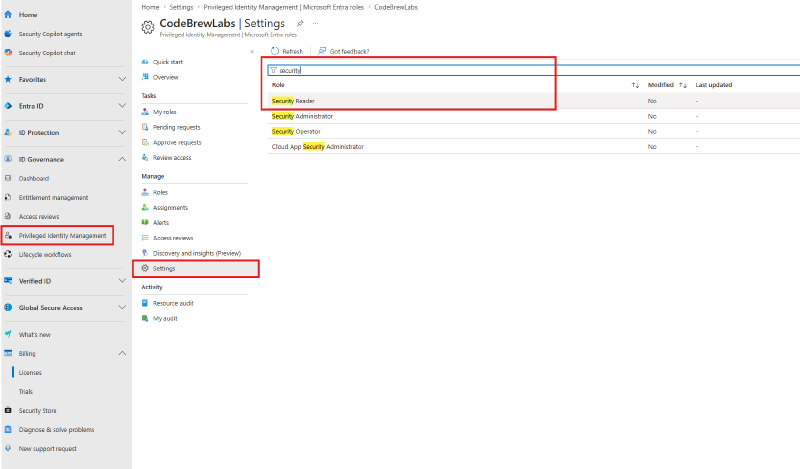
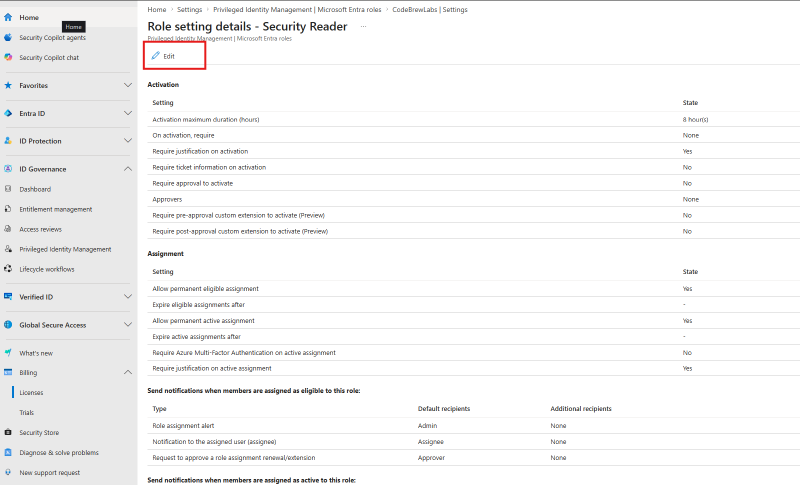
The current defaults are visible on the role setting details page: 8-hour max activation, no approval required. Click Edit.
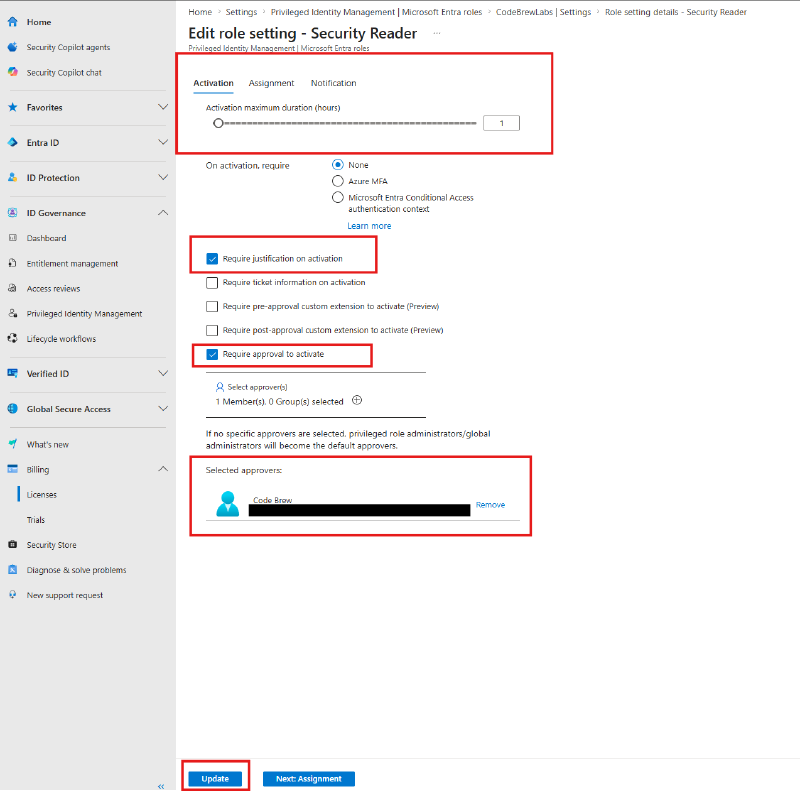
On the Activation tab, change three things:
- Activation maximum duration: 1 hour
- Check Require justification on activation
- Check Require approval to activate, and select a specific approver. If no approver is selected, Privileged Role Administrators and Global Administrators become the default approvers.
Click Update.
Part 3 - Activate the role as the test user#
3.1 Request activation#
Sign in as the test user and go to PIM > My roles > Microsoft Entra roles. Under Eligible assignments sits Security Reader with an Activate link. Click it.

3.2 Provide justification#
The activation pane enforces exactly what we configured: duration capped at 1 hour, and a mandatory Reason field. Enter a justification and click Activate.
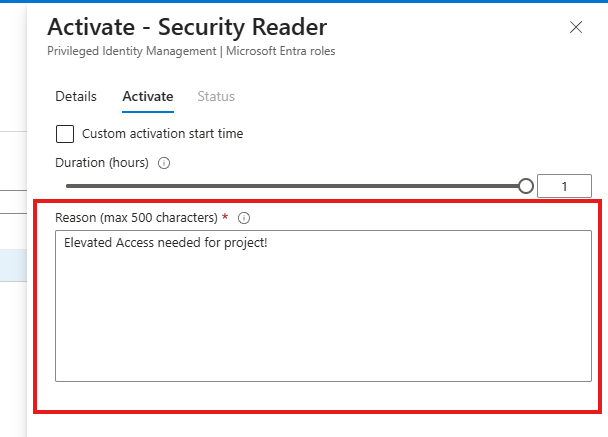
Because approval is required, the request now goes into a pending state. The user does not get the role yet.
Part 4 - Approve the request#
4.1 The approver is notified by email#
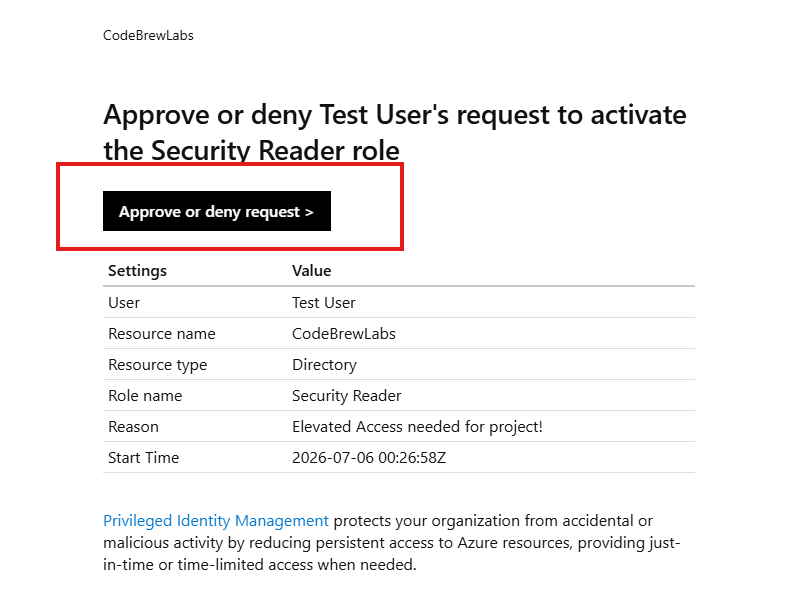
The approver receives an email summarizing the request (who, which role, the justification, the start time) with an Approve or deny request button.
4.2 Approve in the portal#
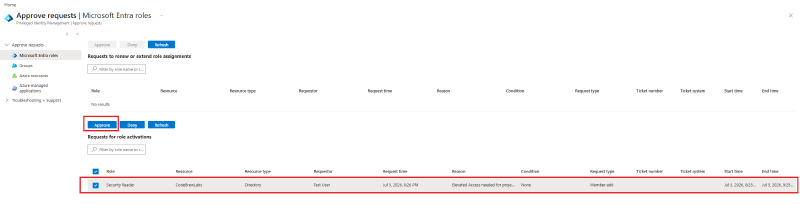
The link lands on PIM > Approve requests, where the request appears under Requests for role activations. Select it, add an approval justification, and Approve.
Part 5 - Verify the elevation#
5.1 The role is now active on the user#
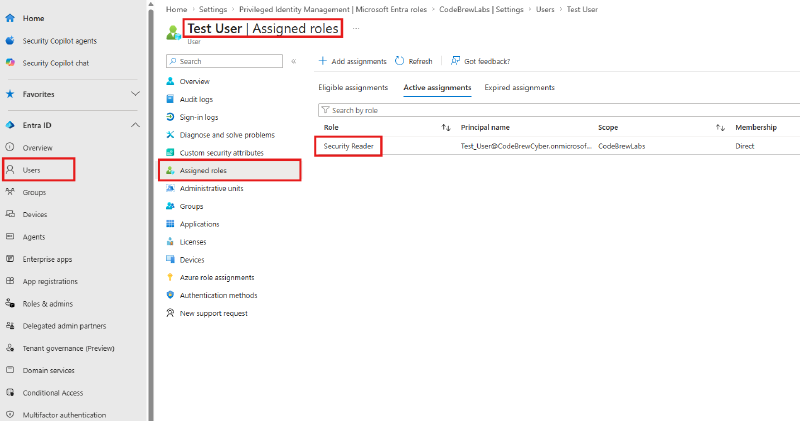
Under Entra ID > Users > Test User > Assigned roles, the Active assignments tab now shows Security Reader: a real role assignment, created by PIM, that will be removed automatically at the end of the activation window.
5.2 The audit trail#
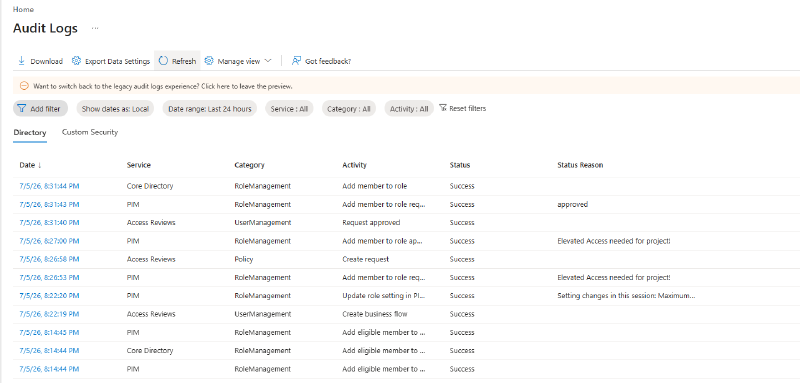
Audit Logs capture every step with PIM as the service: the eligible assignment, the role-setting change, the activation request (with the justification as the Status Reason), the approval, and finally “Add member to role”. This is the evidence chain an auditor, or an incident responder, would walk through.
Part 6 - Deactivate#
If the user finishes early, they can end the elevation themselves: My roles > Active assignments > Deactivate. Otherwise it expires automatically at the 1-hour mark. The minimum activation duration is 5 minutes.

Cleanup#
Remove the eligible assignment (PIM > Microsoft Entra roles > Assignments) and optionally reset the Security Reader role settings to defaults.
Key takeaways#
- Eligible and Active are different states. Eligible means “may activate”; active means “holds the role now”. PIM’s goal is zero standing privileged access.
- Role settings are per-role activation policy: max duration, MFA/justification/ticket requirements, and approval with named approvers.
- Approval inserts a human gate. The requestor holds nothing until an approver signs off, and both sides must justify.
- Everything is logged. PIM writes the full request, approval, assignment, and expiry chain to the audit logs.
- Know the licensing: PIM is an Entra ID P2 feature (Conditional Access is P1).